Django application on Google Cloud Platform.
How to deploy Django app on Google Platform with Terraform

From 2021Written in 2021. The ideas may still hold, but check the current docs for newer details.
Repository with code: TobKed/django_on_gcp
Blog post is complementary to the repository github.com/TobKed/django_on_gcp
[TOC]
Introduction
The Cloud is consistently growing and it may be worth considering for your next Python project. But Cloud is also very complex and the number of available services is still growing, as well as the number of decisions that have to be made when you want to create configuration for your project. If you want to learn how to run a simple, basic Django app in the Google Cloud Platform [GCP] and see how easy it can be as well as to get the underlying services in the form of the code (Infrastructure as Code [IaC]), this is a place for you.
There are many ways to deploy a Django application on the GCP:
- App Engine (covered here)
- Cloud Run (covered here)
- Kubernetes (TODO)
- Compute Engine (not covered here)
Most of them are covered in GCP documentation which is quite good in my opinion, however if you are not familiar with the Cloud, all these services and operations may seem confusing (and redundant). Django apps mentioned in these tutorials are almost the same, they have changes dependent on the service type on which they were supposed to be running, nevertheless some changes are not related. Moreover, I found some of the tutorials and apps to contain tiny bugs.
So what I have done here is a simple Django application (based on Django project tutorial: Writing your first Django app, where all changes specific to given GCP services are grouped and can be found in the possible fewest number of places for an easy analysis. Additionally, infrastructure is wrapped in the Terraform (IaC tool) which allows you to easily create (and destroy) all necessary resources. The process of deploying application itself is not handled by Terraform (Don’t Deploy Applications with Terraform - Paul Durivage), but it is wrapped in the easy to follow Google Cloud Build [GCB] pipelines, separate for each service. Due to the fact that inheritance between GCB pipelines is not possible, they have a lot in common but analysis of differences between them should not be a problem for you. For GCB purposes I wrapped the app in Docker, even though the App Engine does not require it, but it was the easiest way to provide a proxy connection to Cloud SQL database (app-engine-exec-wrapper,).
Hopefully such a condensed project may help you learn how GCP services may be used along with Python projects, so some ideas could be picked up in the future.
Google Cloud options
App Engine
App Engine is a fully managed, serverless platform for developing and hosting web applications at scale. You can choose from several popular languages, libraries, and frameworks to develop your apps, and then let App Engine take care of provisioning servers and scaling your app instances based on demand.
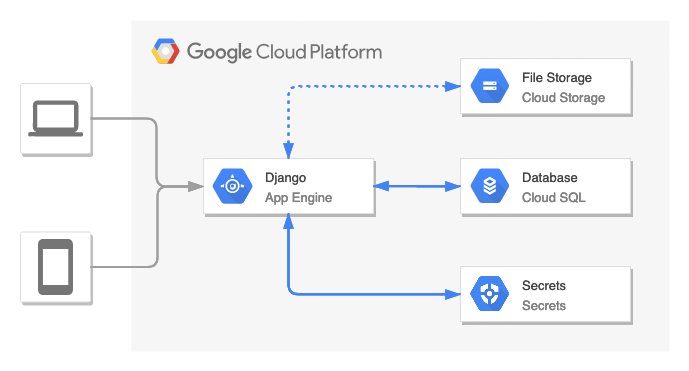
This architecture consists of:
- App Engine - the main service which provides Django app directly to the users
- Secrets - stores sensitive data (secret key, database credentials, bucket name, etc.)
- Cloud SQL - relational database (PostgreSQL)
- Cloud Storage - file storage (static files could optionally be served by App Engine directly)
Cloud Run
Cloud Run is a managed compute platform that enables you to run containers that are invocable via requests or events. Cloud Run is serverless: it abstracts away all infrastructure management, so you can focus on what matters most — building great applications.
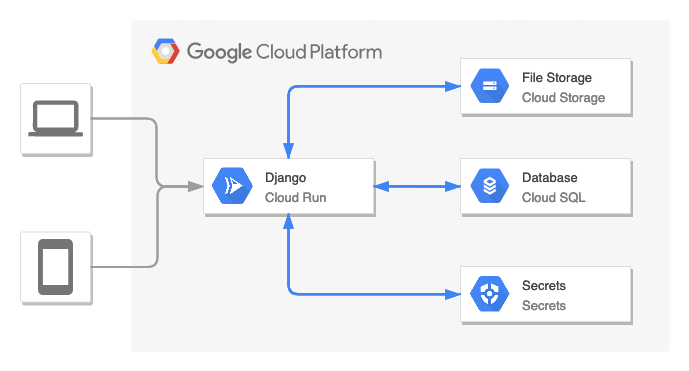
This architecture consists of:
- Cloud Run- the main service which provides Django app directly to the users
- Secrets - stores sensitive data (secret key, database credentials, bucket name, etc.)
- Cloud SQL - relational database (PostgreSQL)
- Cloud Storage - file storage
Django app changes specific for Google Cloud Platform
All changes to the fresh Django app are located in mysite/settings.py file
and are related to three areas: secrets, database and storage.
I will describe each of them.
Secrets
As depicted in diagrams from the previous point, the application connects to the Google Secrets service to obtain some sensitive information.
 :::python
 import io
 import os
 from pathlib import Path

 import environ
 from google.cloud import secretmanager

 BASE_DIR = Path(__file__).resolve().parent.parent


 env = environ.Env(DEBUG=(bool, False))
 env_file = os.path.join(BASE_DIR, ".env")


 if os.path.isfile(env_file):
     env.read_env(env_file)
 # Pull secrets from Google Secret Manager
 elif os.environ.get("GOOGLE_CLOUD_PROJECT", None):
     project_id = os.environ.get("GOOGLE_CLOUD_PROJECT")
     settings_name = os.environ.get("SETTINGS_NAME", "django_settings")
     client = secretmanager.SecretManagerServiceClient()
     name = f"projects/{project_id}/secrets/{settings_name}/versions/latest"
     payload = client.access_secret_version(name=name).payload.data.decode("UTF-8")
     env.read_env(io.StringIO(payload))
 else:
     raise Exception("No local .env or GOOGLE_CLOUD_PROJECT detected. No secrets found.")
Environmental variables are handled by
django-environpackage.If the
.envfile exists it is treated as the source of secrets (extends environmental variables).Otherwise, if
GOOGLE_CLOUD_PROJECTenvironmental variable existence check is positive, then client of Google Secrets fetches the secret (with default namedjango_settings) and extends environmental variables with values from it.If there is no
.envfile and noGOOGLE_CLOUD_PROJECTvariable, then an exception is raised and the app will not be able to start.The secret (mentioned
django_settingsfrom Google Secrets) consists of three variables:SECRET_KEY- which is used to provide cryptographic signing.DATABASE_URL- database connection information and credentials.GS_BUCKET_NAME- Google Cloud Storage bucket name (may be empty for Google App Engine standard environment).
Database
 :::python
 default_sqlite3_database = "sqlite:///" + str(BASE_DIR / "db.sqlite3")
 DATABASES = {"default": env.db("DATABASE_URL", default=default_sqlite3_database)}

 # If the flag as been set, configure to use proxy
 if os.getenv("USE_CLOUD_SQL_AUTH_PROXY", None):
     DATABASES["default"]["HOST"] = "127.0.0.1"
     DATABASES["default"]["PORT"] = 5432
Database connection string is obtained from the
DATABASE_URLenvironment variable. Otherwise, the defaultsqlite3database is used.Then, if the
USE_CLOUD_SQL_AUTH_PROXYenvironmental variable exists, the database connection will be modified to make it work with Cloud SQL Auth proxy.Storage
 :::python
 GS_BUCKET_NAME = env("GS_BUCKET_NAME", default=None)

 STATIC_URL = "/static/"

 if GS_BUCKET_NAME:
     DEFAULT_FILE_STORAGE = "storages.backends.gcloud.GoogleCloudStorage"
     STATICFILES_STORAGE = "storages.backends.gcloud.GoogleCloudStorage"
     GS_DEFAULT_ACL = "publicRead"
 else:
     STATIC_ROOT = "static"
     STATICFILES_DIRS = []
If
GS_BUCKET_NAMEenvironment variable exists, then the relevant storage backend will be set with the help of django-storages package.
Prerequisites
Topics you should be familiar with since they will be not covered:
- Python and Django
- Cloud - basic cloud concepts in general
- Google Cloud Platform: basics of the services, use of
gcloudCLI, managing billing and documentation about Django on GCP (GCP documentation) - Terraform - basic use and concepts. You can also check my tutorial on Medium: Terraform Tutorial: Introduction to Infrastructure as Code
What you should prepare:
- Google Cloud Project - create a fresh GCP project or use an existing one (but it may cause Terraform exceptions)
gcloud- install GCP cli and authorize it with a relevant GCP Project- Terraform - install the latest version
- Python [optionally] - Python 3.9 in virtual environment if you want to run Django app locally
Instructions
Most of the terminal commands stated here are executed within the Terraform environment folder relevant to the chosen solution.
1. Types of deployments
| Terraform environment folder | Description | GCS | CLOUD_BUILD_FILE variable | Config file | Used Terraform module |
|---|---|---|---|---|---|
terraform/envs/gae_standard | App Engine Standard environment without GCS storage | ❌ | cloudbuild/gae_standard.yaml | gae_standard.yaml | terraform/modules/django_gae_standard |
terraform/envs/gae_standard_with_gcs | App Engine Standard environment | ✅ | cloudbuild/gae_standard_with_gcs.yaml | gae_standard_with_gcs.yaml | terraform/modules/django_gae_standard |
terraform/envs/gae_flexible | App Engine Flexible environment | ✅ | cloudbuild/gae_flexible.yaml | gae_flexible.yaml | terraform/modules/django_gae_flexible |
terraform/envs/cloud_run | Cloud Run | ✅ | cloudbuild/cloud_run.yaml | - | terraform/modules/django_cloud_run |
2. Variables specific for your GCP project
Shell environmental variables
Set environmental variables. Some values you have to know beforehand, like
PROJECT_ID. Others you can generate on the fly, likeDJANGO_SECRET_KEYhowever, remember to keep them somewhere (see the next step). They will be used to provide input variables for Terraform and forgcloudcommands.:::shell export PROJECT_ID=django-cloud-tf-test-001 export REGION=europe-central2 export ZONE=europe-central2-a export SQL_DATABASE_INSTANCE_NAME="${PROJECT_ID}-db-instance" export SQL_DATABASE_NAME="${PROJECT_ID}-db" export SERVICE_NAME=polls-service export SERVICE_ACCOUNT_NAME=polls-service-account # for cloud run export SERVICE_ACCOUNT="${SERVICE_ACCOUNT_NAME}@${PROJECT_ID}.iam.gserviceaccount.com" # for cloud run export DJANGO_SECRET_KEY=$(cat /dev/urandom | LC_ALL=C tr -dc '[:alpha:]'| fold -w 50 | head -n1) export SQL_USER=$(cat /dev/urandom | LC_ALL=C tr -dc '[:alpha:]'| fold -w 10 | head -n1) export SQL_PASSWORD=$(cat /dev/urandom | LC_ALL=C tr -dc '[:alpha:]'| fold -w 10 | head -n1)gcloudproject configuration:::shell gcloud config set project $PROJECT_IDTerraform variables
Terraform can read variables from environment variables. Naming convention is
TF_VAR_variable_name.:::shell export TF_VAR_project_id=$PROJECT_ID export TF_VAR_region=$REGION export TF_VAR_zone=$ZONE export TF_VAR_django_secret_key=$DJANGO_SECRET_KEY export TF_VAR_sql_database_instance_name=$SQL_DATABASE_INSTANCE_NAME export TF_VAR_sql_database_name=$SQL_DATABASE_NAME export TF_VAR_sql_user=$SQL_USER export TF_VAR_sql_password=$SQL_PASSWORD export TF_VAR_cloud_run_service_account_name=$SERVICE_ACCOUNT_NAMEAnother way to provide input variables is the ‘.tfvars’ file. With variables set in the previous step, such file could be generated with the following command:
 :::shell
 cat << EOF > terraform.tfvars
 project_id                     = "$PROJECT_ID"
 region                         = "$REGION"
 zone                           = "$ZONE"
 django_secret_key              = "$DJANGO_SECRET_KEY"
 sql_database_instance_name     = "$SQL_DATABASE_INSTANCE_NAME"
 sql_database_name              = "$SQL_DATABASE_NAME"
 sql_user                       = "$SQL_USER"
 sql_password                   = "$SQL_PASSWORD"
 cloud_run_service_account_name = "$SERVICE_ACCOUNT_NAME"
 EOF
More about variables: Input Variables and Variable Definition Precedence
3. Set up infrastructure
Set up infrastructure with basic Terraform commands:
:::shell
terraform init
terraform plan
terraform apply
Known issues:
No way to delete an application - 13 years old Google issue:
  :::shell
  Error: Error creating App Engine application: googleapi: Error 409: This application already exists and cannot be re-created., alreadyExist`
After destroying infrastructure and recreating it again this error occurs since the App Engine app was (silently) not deleted as intended. It could be fixed by importing the existing App Engine app into Terraform state:
  :::shell
  terraform import module.$TERRAFORM_MODULE_NAME.google_app_engine_application.app "${PROJECT_ID}"
Replace
$TERRAFORM_MODULE_NAMEwith the relevant module name (seemain.tfin env of your choice).Example for
django_gae_standard::::shell terraform import module.django_gae_standard.google_app_engine_application.app "${PROJECT_ID}"More about importing: Terraform - import
random null occurrence for
data.google_project.project.number(my comment onhashicorp/terraform-provider-google - data.google_project.project.project_id sometimes nullissue)::::shell The expression result is null. Cannot include a null value in a string template.The only solution here is to retry until it works and wait until the new version of the
hashicorp/terraform-provider-googlehas it eliminated.
4. Deploy app
I share the opinion that Terraform should only be used to provide the infrastructure and the deployment of the application itself should be handled separately (see Don’t Deploy Applications with Terraform - Paul Durivage).
GCB pipelines handle the operation of deploying and/or updating the application.
Set GCB pipeline relevant to the chosen deployment
Substitute the path with the value taken from the Types of deployments table
 :::shell
 export CLOUD_BUILD_FILE=<put value here>
Deploy
Commands should be run from the root repository directory (see
CLOUD_BUILD_FILEvariable).App Engine
Run GCB pipeline:
  :::shell
  gcloud builds submit \
    --project $PROJECT_ID \
    --config $CLOUD_BUILD_FILE \
    --substitutions _INSTANCE_NAME=$SQL_DATABASE_INSTANCE_NAME,_REGION=$REGION,_SERVICE_NAME=$SERVICE_NAME
Display GAE application url:
  :::shell
  gcloud app describe --format "value(defaultHostname)"
Known issues:
ambiguous error occurrence during the last step, a Terraform Google provider issue, wait a while and retry
  :::shell
  Step #5 - "deploy app": ERROR: (gcloud.app.deploy) NOT_FOUND: Unable to retrieve P4SA: [service-123456789101@gcp-gae-service.iam.gserviceaccount.com] from GAIA. Could be GAIA propagation delay or request from deleted apps.
  sFinished Step #5 - "deploy app"
Cloud Run
Run GCB pipeline:
  :::shell
  gcloud builds submit \
    --project $PROJECT_ID \
    --config $CLOUD_BUILD_FILE \
    --substitutions _INSTANCE_NAME=$SQL_DATABASE_INSTANCE_NAME,_REGION=$REGION,_SERVICE_NAME=$SERVICE_NAME,_SERVICE_ACCOUNT_NAME=$SERVICE_ACCOUNT_NAME
Display Cloud Run application url:
  :::shell
  gcloud run services list --filter SERVICE:$SERVICE_NAME --format "value(status.address.url)"
5. Destroy infrastructure
:::shell
terraform destroy
Extra: Create Django superuser
Superuser credentials are intended to be stored as Google Secret.
Default name for the secret is superuser_credentials.
These credentials are used by cloudbuild/create_superuser.yaml GCB pipeline for superuser creation.
An easy way to quickly create and destroy Google Secrets is to use the gcloud cli.
Optionally, resources could be created in TF as well, however if superuser credentials are needed only once,
it does not seem to be the best idea to store it as IaC.
Create the secret:
 :::shell
 export SECRET_NAME="superuser_credentials"
 export SUPERUSER_USERNAME="super_username"
 export SUPERUSER_PASSWORD="super_password"

 gcloud secrets create $SECRET_NAME --replication-policy="automatic"
 echo -n "USERNAME=${SUPERUSER_USERNAME}\nPASSWORD=${SUPERUSER_PASSWORD}\n" | \
   gcloud secrets versions add $SECRET_NAME --data-file=-
Optionally, you can read the secret to verify if it is correct:
 :::shell
 gcloud secrets versions access latest --secret=$SECRET_NAME
Run GCB pipeline which creates Django superuser:
 :::shell
 gcloud builds submit \
   --project $PROJECT_ID \
   --config cloudbuild/create_superuser.yaml \
   --substitutions _INSTANCE_NAME=$SQL_DATABASE_INSTANCE_NAME,_REGION=$REGION,_SERVICE_NAME=$SERVICE_NAME
Delete the secret:
 :::shell
 gcloud secrets delete $SECRET_NAME
Optionally create Secret as a Terraform resource (credentials provided as variables):
:::hcl
variable "django_superuser_username" {
  description = "Django superuser username"
  type        = string
}

variable "django_superuser_password" {
  description = "Django superuser password"
  type        = string
}

resource "google_secret_manager_secret" "superuser_credentials" {
  secret_id  = var.django_settings_name
  depends_on = [google_project_service.gcp_services]
  labels = {
    label = "superuser_credentials"
  }

  replication {
    automatic = true
  }
}

resource "google_secret_manager_secret_version" "superuser_credentials_version" {
  secret = google_secret_manager_secret.django_settings.id

  secret_data = <<-EOF
  USERNAME=${var.django_superuser_username}
  PASSWORD=${var.django_superuser_password}
  EOF

  depends_on = [module.django_cloud_run]  # relevant module for your case
}
How to run app locally
Instruction on how to run this app locally with or without connection to the cloud services. If you want to run the app with connection to the cloud services you have to set up the infrastructure first (steps 1-3 in Instructions).
Create Python virtual environment and install dependencies:
 :::shell
 python -m venv venv
 source venv/bin/activate
 pip install -r requirements.txt
Set up connection to Google Cloud services (if you need them):
Authenticate to GCP:
  :::shell
  gcloud auth application-default login
Install Cloud SQL Auth proxy:
  :::shell
  # Linux 64-bit
  wget https://dl.google.com/cloudsql/cloud_sql_proxy.linux.amd64 -O cloud_sql_proxy
  # MacOS 64-bit
  curl -o cloud_sql_proxy https://dl.google.com/cloudsql/cloud_sql_proxy.darwin.amd64

  chmod +x cloud_sql_proxy
Export environment variables:
  :::shell
  export GOOGLE_CLOUD_PROJECT=$PROJECT_ID
  export USE_CLOUD_SQL_AUTH_PROXY=true
Create
.envfile with secrets:without connection to cloud services:
  :::shell
  echo "DEBUG=True" > .env
with connection to cloud services (values fetched from Google Secrets):
  :::shell
  echo "DEBUG=True" > .env

  # The output will be formatted as UTF-8 which can corrupt binary secrets.
  # To get the raw bytes, have Cloud SDK print the response as base64-encoded and decode
  gcloud secrets versions access latest --secret=django_settings --format='get(payload.data)' \
    | tr '_-' '/+' | base64 -d >> .env
Run the Django migrations to set up your models and assets:
 :::shell
 python manage.py makemigrations
 python manage.py makemigrations polls
 python manage.py migrate
 python manage.py collectstatic
Start the Django web server:
 :::shell
 python manage.py runserver
Warnings!
- Remember to edit
.gcloudignoreand.dockerignore. It excludes all files except implicitly added. - Running services and operations costs real MONEY. Make sure that you do not leave any resources that consume credits unintentionally.
- Examples here are not production-ready and do not provide a sufficient level of security. If you want to run it within your organization, consult it with the person responsible for Cloud (e.g. Cloud Security Officer).